Ink Spout

Ink Spout has evolved into Ink Spouts now. It is available at a new address now. www.inkspouts.com We have rebooted it and It's back with lots of stuffs . :D Just go and check it out.

Featured Posts

Ink Spout has evolved into Ink Spouts now. It is available at a new address now. www.inkspouts.com We have rebooted it and It's back with lots of stuffs . :D Just go and check it out.
Sunday, May 20, 2012

Many of us are fond of sticking to our system and keep surfing over the ocean of information (Internet - I know I exaggerated it :-P) and eating those chunks of articles, stories like a hungry man.
Often, there are situations when you pauses your reading just because of being unaware of the meaning of a particular word. Now you copy that word and paste it into any dictionary (if installed in your computer) or moreover in Google Search Box to know the meaning.
I know it’s pretty headache to do while reading something interesting.
So here is a simple neat and clean solution (for two most popular web browsers – Google Chrome and Mozilla Firefox).

Google Chrome :

        Step 1. Go to this link Google Dictionary by clicking on it.
        Step 2. There will be a webpage looking like the below image.


             Step 3. Click on “Add to Chrome” and a dialogue box will open asking you to “install”. Click on “Install”.
             Step 4. Now you are done. While reading anything on internet, Simply Double click on a word and it’ll show the meaning in yellow balloon. It’s a simple as that.


     Mozilla Firefox : 
      There is no add-on for Mozilla Firefox like Google Chrome has Google Dictionary. But similar solution is there. :-D . It is “Wiktionary and Google Translate” add-on which gives you similar working as of Google Dictionary.

             Step 1. Follow this link Wiktionary and Google Translate by clicking on it.

              Step 2.  Click on “Add to Firefox” and now add-on will be downloaded and it’ll ask you to install it.


                Step 3.  Do as it says and your task is finished. Just double click on word and enjoy seamless reading.

     So this was all about getting word meaning and definitions while browsing and reading stuffs over internet.
I hope this article will help you. Specially the students and the reader community.
Happy Reading folks. :-)


Read More.....

Friday, May 11, 2012

So thinking of downloading a movie??


Its illegal and i don't recommend it but if you do choose to ignore it then here are a bunch of explanations about prints and quality for newbies.

Types of prints -

CAM - Camera print, Shot in a theater with people standing up , laughing and clapping all in it. Dont download

TeleSynch - A telesynch is a cam print that has been synched with different audios from other files and applied with a couple of filters for increasing brightness, colors , contrast etc. Download only is u really really want to watch a particular movie.

R5- A R5 is a print with excellent video and usually not so good audio which have been taken together from different sources and combined together.

DVDScr - A screener is a DVD that is given to few people(in Hollywood) to check out a new movie. Its excellent print but watermarked. At times it can be as good as a DVDrip or BRrip

DVDRip - A movie ripped and encoded from a DVD. Excellent print and download without hesitation

BRrip - A bluray rip is the holy grail of awesome movie quality and downloading. Must Download.

Always check for comments and Audio/Video(A/V) ratings. Usually anything above a 7 is good

Also if a DVDrip is out too early then its probably a fake. Check the sample before downloading

Read More.....

Saturday, March 24, 2012

Ghost in the Wires

Ever heard of Kevin Mitnick???
If you call yourself a computer enthusiast or tech geek and you havnt heard of him then believe me you would wanna know about him and his story.

I read his first book The Art of Deception couple of years back and loved it. When this one came out I was very excited and boy i wasnt disappointed.

If you happened to read Steve Jobs(the book) or Paul Allen's bio its the same. Very exciting and thrilling

Read More.....

0 comments

Happened to catch this old pic starring Kate Beckinsale.
A reporter cant reveal its source because if they did then who would go to them and its also a legal thing.
Its mentioned in loads of legal or crime thrillers(Girl with the dragon tattoo,damages etc)
The movie is about such a story based on real life events. Its an excellent movie with a really good ending.Watch it if you havnt already
http://www.facebook.com/CriticalCritique


Read More.....

Thursday, March 15, 2012 0 comments

With this post I am starting Tech-Jargon series which will give you a brief overview of terminology and concepts in simple manner.
Often I find many of my friends and juniors confusing between the dataspeed i.e. kbps and KBps. Firstly the important question arises whether there is any difference between these two terms?
For your surprise the answer is YES.
Before going into explanation let’s make few terms clear to feel the thing.
b = bit (the most basic unit a computer handles)
B = byte (1 byte = 8 bits)
K = 1,024 ; k= 1,000
so now I think , many things are pretty much clear. In normal adaption both “K” and “k” are considered as same because “K” is recently introduced and faces low adoption (also there is not much difference in both).
So the basic difference is clear by their full form that are "kbps/Kbps - kilobits per second" and "kBps/KBps - KiloBytes per second".
Whenever any ISP claims to provide the data transfer speed in Mbps it simply means Megabits per second. In other words, for a 1Mbps broadband connection, it will take minimum 8 seconds (1000/125KBps) to download a 1 MB (megabyte) file from the internet. Most Broadband companies define 1K as 1,000 and not as 1,024 which is the used for computing. So next time you are looking in to your internet speed do keep this in mind.

General Transformation of Speed

so the overall general conclusion is that whenever you have speed in Mbps or mbps,
 divide that by 8 and that will be your original downloading speed.
I hope you have made your doubts clear and enjoyed this info-ride.
If you liked it, you have full right to comment (& you should use it ;-)) and share it.
Read More.....

Sunday, January 15, 2012

Love to read news and get updated with the happenings all over the world? 
Can't visit each time on your favourite website or blog?
Tried many RSS readers but didn't find any good reader!!!
Well, here is the answers of your questions........
FeedDemon is a free RSS news feed reader which has a clean,effective and easy to understand user interface. It's quite handy as well as an easy to configure and use software but still is feature-rich. It provides three different views for going through a number of posts and news feeds.Also it comes with a built-in web browser which makes you enable to surf the web within the same window.


Let have a look on some promising features as given on publisher's website


1. Google Reader Synchronization
Use FeedDemon at home, your office, or anywhere you go and keep your feeds, tags and shared items synched between locations.
2. Sharing
FeedDemon's simple single-click sharing lets your friends subscribe to your favorite articles.
3. Tagging
Assign your own keywords to items, making it easy to classify and locate articles you've previously read.
4. Watches
Tell FeedDemon to let you know when your keywords appear in any feed you're subscribed to.
5. Search Feeds
Get alerted when your keywords appear in any feed, regardless of whether you're subscribed to it.
6. Podcasts
Let FeedDemon automatically download audio files and copy them to your iPod or other media device.


In a nutshell, FeedDemon is a small packet,big blast.
finally a nice demon ;-)


Download it and and stay informed with the latest news and information.

Read More.....

Friday, January 13, 2012 0 comments

Moving forward in our new series Reclaim your Nascent PC, here I am going to share a new tip with you. Often whenever you surf internet, temporary internet files are stored in your system for quick viewing. But with increasing time, the number of these files also increases.
Further, whenever you use a program, it sometimes saves temporary information which keeps on occupying more and more space in your harddisk.
Morever, windows keeps copies of all pictures, videos and other documents thumbnails. In addition to these, whenever your system encounters any problem or error, it stores the relevant information in files for error reporting and solution checking.

The sum of all above facts is that these useless(for a normal user :D) occupied memory space can be freed without any problem. You don’t need any particular software or utility for this purpose.
Here we go in simple steps.
  • Press Win + E key or click on My Computer. Right Click on your Operating System drive (i.e. C drive commonly) and choose "Properties".


  • In Properties Dialog box, choose "Disk Cleanup" option.


  • After clicking on that button, there will an activity like below in image.It will take few seconds.


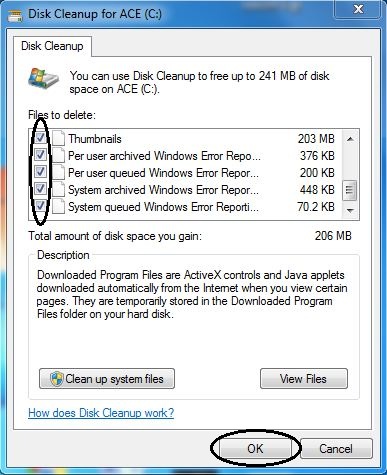
  • Now there will be shown a disk cleanup window. Check all appropriate options and click on OK button.


  • On clicking OK button, again a window will appear showing disk cleanup process.After finishing that, you are done.

This is the whole thing you have to do.
Simple!!!!!!!!!! Isn't it? :)
If you like it,leave your precious comment as feedback.
Meanwhile you 'd like to check first post of this Series out.

See you Soon. Till then Enjoy your Nascent PC. :-)
Read More.....

Most Trending

Recent Posts

Recommend us on Google!

featured-slider

Labels

Bloggers.com

Bloggers - Meet Millions of Bloggers